How Much Does Website Maintenance Cost? What Small Businesses Really Pay
Keeping a website running can cost a few dollars a month or a few hundred. Here's each line item, what's fair to


Google Business Profile verification is the step that proves to Google you really run your business. Until your Google Business Profile verification is done, you can't control what your profile says.
An unverified profile also can't fully show up on Google Maps and in local search. The trouble is that Google doesn't give everyone the same steps.
Some owners verify with a text message in a minute. Others are asked for a video, and some get stuck for weeks.
This guide shows you how to verify your Google Business Profile with each method. It also covers what to have ready, and what to do when it fails.
Anyone can suggest a business on Google. Verification is how Google checks that the person managing the profile is the real owner or someone they trust.
Once your profile shows as verified, you can edit your hours, add photos, reply to reviews and post updates. More important, a verified profile is the one Google is willing to show in its map results.
Google explains the process on its own help page: Verify your business on Google. Keep it open while you work.
This is the part that confuses most owners. Google says the methods you're offered depend on your business category, your region and other factors.
It also looks at what it can already find about you in public. So one business may see a phone option and another may only see video.
You can't pick a method that isn't shown to you. Google also says that in some cases you may need to complete more than one step.
The good news is that most of the work is the same for every method. Get your details right first, and whichever method appears is easier.
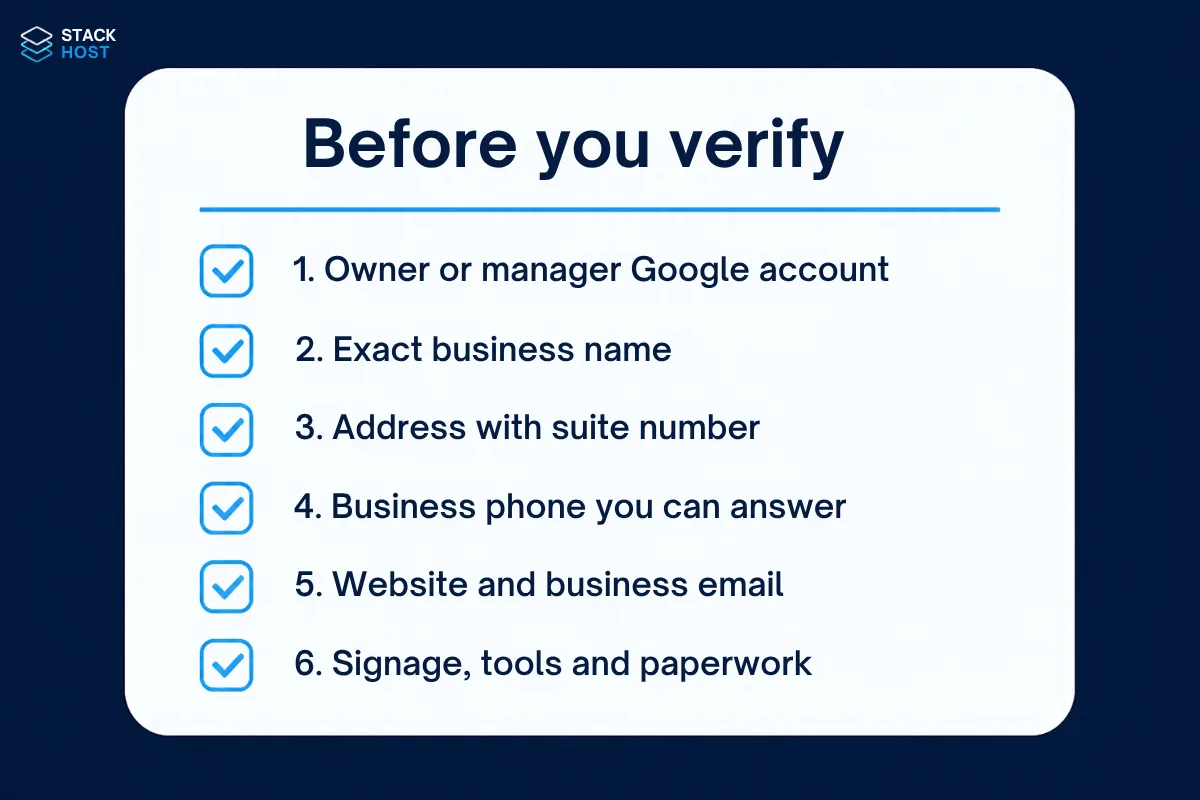
Details that don't match can hold up verification. Before you start, gather these:
Do you serve customers at their place, not at your address? Then you're a service-area business.
You still verify with an address, but you can hide it from the public. Then list the areas you serve instead.
This is the quickest when it's offered. Google sends a code to your business phone by call or text.
Google sends a code to an email address. Make sure it's an inbox you can open right away.
You may be asked to record one short, continuous video on your phone and upload it. Google reviews it and replies by email.
Google wants to see three things in your video:
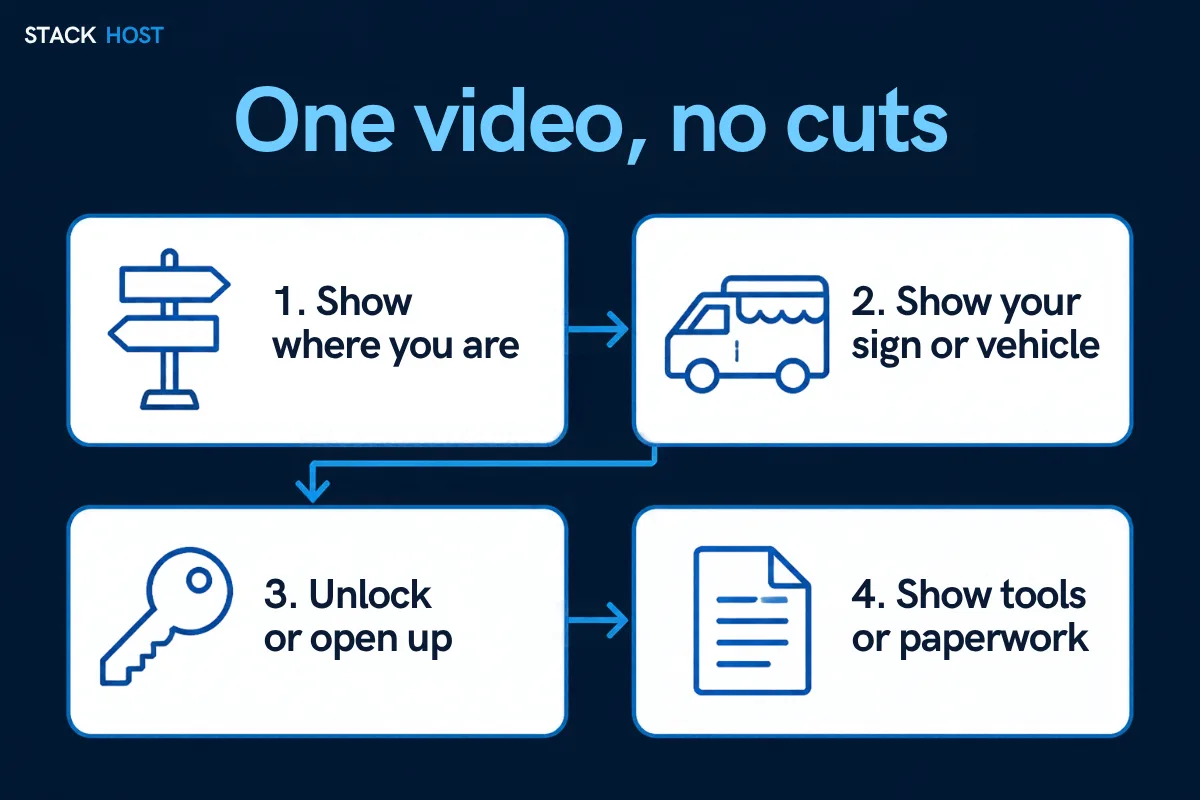
Record in one take. Don't edit, cut or add music. Film in daylight and move slowly so the details are clear.
No storefront? Service-area businesses can show a branded truck, tools of the trade and business paperwork.
A dumpster or portable toilet company might show its yard and the units with its name on them. Then it could show a work order.
Some businesses are offered a live video call with a Google support agent instead. You book a time, then show the agent what you would show in a recorded video.
Be at your business, with good signal, your keys and your paperwork in hand.
Google mails a postcard with a code to your business address. Not every business is offered this method.
Sign in and search your business name on Google. If your profile tools appear and there's no prompt to verify, you're done.
You can also check at business.google.com. A profile that still needs work will show Get verified, Pending or a message about review.
Once it's verified, give it some care. Our guide to optimizing your Google Business Profile covers photos, categories and posts.
Often this means Google couldn't link the video to your address. Or it couldn't see proof you run the business.
The fix: record again in one take, starting further out so the street is clear. Show your sign or vehicle up close, then unlock the door or show paperwork with your business name. Make sure the address on your profile matches where you're filming.
Postcards get lost, or the address is missing a suite number.
The fix: check the address on your profile, letter by letter. Wait the time Google shows on screen, then request a new code and use only the newest one. If another method is offered, try that.
Sometimes Google says verification is unavailable, or shows no methods. This can happen when Google wants to review the profile first, or after a lot of edits.
The fix: stop editing for a while. Make sure your name, address and phone match your website and signage. Then try again, or contact Google support from the help center.
Google is checking your profile by hand. It's tempting to keep clicking and changing things, but that can make it slower.
The fix: don't edit, and don't make a second profile. Wait for Google's email. If nothing comes after the time Google shows, contact support through the Business Profile help center and keep your case number.
A former employee, an old web designer or an agency may own your profile.
The fix: first, ask that person to add you as an owner. If you can't reach them, use Google's request ownership process. Google contacts the current owner, and if they don't reply, you may be offered a way to verify yourself.
Suspensions often follow a guideline problem. Common ones are a name with extra keywords, a PO box or virtual office as the address, or a business type Google doesn't allow.
The fix: read Google's guidelines and fix what doesn't match. Then use the appeal option Google shows in your profile. Include proof, like your business license and a photo of your sign.
Duplicates split your reviews and confuse Google. They often appear when someone gives up on a stuck profile and makes a new one.
The fix: keep the profile with the most reviews and history. Ask Google support to merge or remove the duplicate. Don't verify both.
Verification gets you in the game. It doesn't decide where you show up. Your website, reviews and listings all play a part.
Is your profile live but your website still missing? Read why your website isn't showing up on Google. It covers the common fixes.
It depends on the method. Phone, text and email can be quick. Video and postcards take longer because they're reviewed or mailed. Google shows the expected wait on screen when you choose a method.
Often, yes. Google may offer video, phone, text or email instead. You can only use the methods Google shows you, so check your profile to see what's available.
Yes. Set it up as a service-area business and verify with your address. Then hide the address from the public and list the towns you serve.
Changing your address can trigger a new verification. Update your address on your website and listings too, so everything matches.
Someone can help. As the owner, you can add a trusted person or company as a manager. Keep ownership on an account you control.
We help local businesses claim, verify and fix their Google Business Profiles. If yours is stuck, book a free website review or call us at (310) 776-6880.
Not sure how you look on Google right now? Try our free check.
Keeping a website running can cost a few dollars a month or a few hundred. Here's each line item, what's fair to

Google is the world’s leading search engine, and, as such, businesses need to have an optimized Google business page. In this article,

In today’s digital world, businesses have more opportunities to connect with their customers than ever before. While this can be beneficial, it