Best Website Hosting for Small Business: How to Choose Without a Brand List
There is no single best host, only the right one for your business. Here is how to judge any host on backups,


Searching for how to add business to Apple Maps? You do it with a free Apple tool called Apple Business Connect, and you can finish the basics in an afternoon.
Many owners set up Google and stop there. But Apple Maps shows its own version of your business. Anyone with an iPhone who taps an address or opens the Maps app sees Apple's details, not Google's.
This guide walks you through it. First you check what Apple already shows. Then you claim or add your place, verify it, and fill in photos, hours and showcases.
Apple Maps is the map app built into every iPhone, iPad and Mac. Nobody has to download it. When someone taps an address in a text or a search result on an iPhone, it often opens in Apple Maps.
Apple says the details you add in Apple Business Connect can show across its apps, including Maps, Siri and Wallet. So one setup covers several places your customers look.
Each listing has a place card with a call button. If your number is old, that call goes to someone else or nowhere. If your hours are wrong, people drive past a closed door, or skip you when you're open.
Think about your own customers. If many of them text you from iPhones, Apple Maps matters to your phone ringing.
Open the Maps app on an iPhone. Search for your business name and your town. No iPhone? Use Apple Maps on the web from any computer.
Apple may already have a listing for you, built from other data, even if you never added one. Here's what you might find:
Write down what you see before you start. It helps you spot what changed later.
Apple Business Connect works in a web browser, so you can use any computer. Apple's Business Connect user guide explains each screen if you get stuck.
Go to businessconnect.apple.com and sign in with an Apple Account.
Use an account the business controls, not a staff member's personal one. When people leave, you don't want your listing leaving with them.
The fix: if your only Apple Account is your personal one, think about making a new one with a business email address you own. Keep the password with your other business logins.
Business Connect treats your company and your locations as two things. First you add the company: its name, address, phone number and website.
Use the same name you use on your sign, your truck and your Google listing. Don't add town names or service words to it. "Smith Roofing" is a name. "Smith Roofing Best Roofer Dallas" is not.
Next, search for your location inside Business Connect.
Apple reviews new places before they appear on the map. Don't add the same place again while you wait. That can create a duplicate.
Apple asks you to prove the business is yours. The options appear on screen. Depending on your business, that can be a phone call to the number on your listing, or uploading business documents.
The fix: before you start, make sure the business number rings to a person, not only a phone menu. Have a document ready that shows your business name and address, such as a business license or utility bill. Make sure the name on it matches what you typed in.
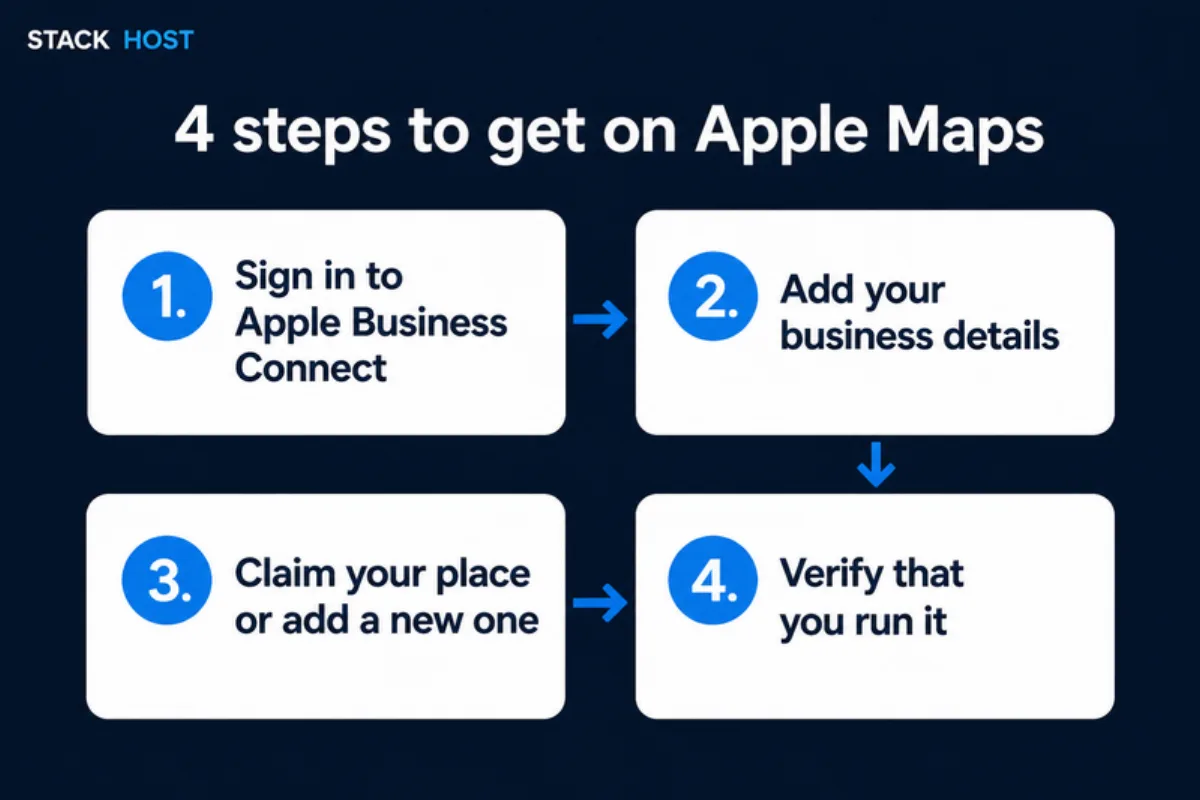
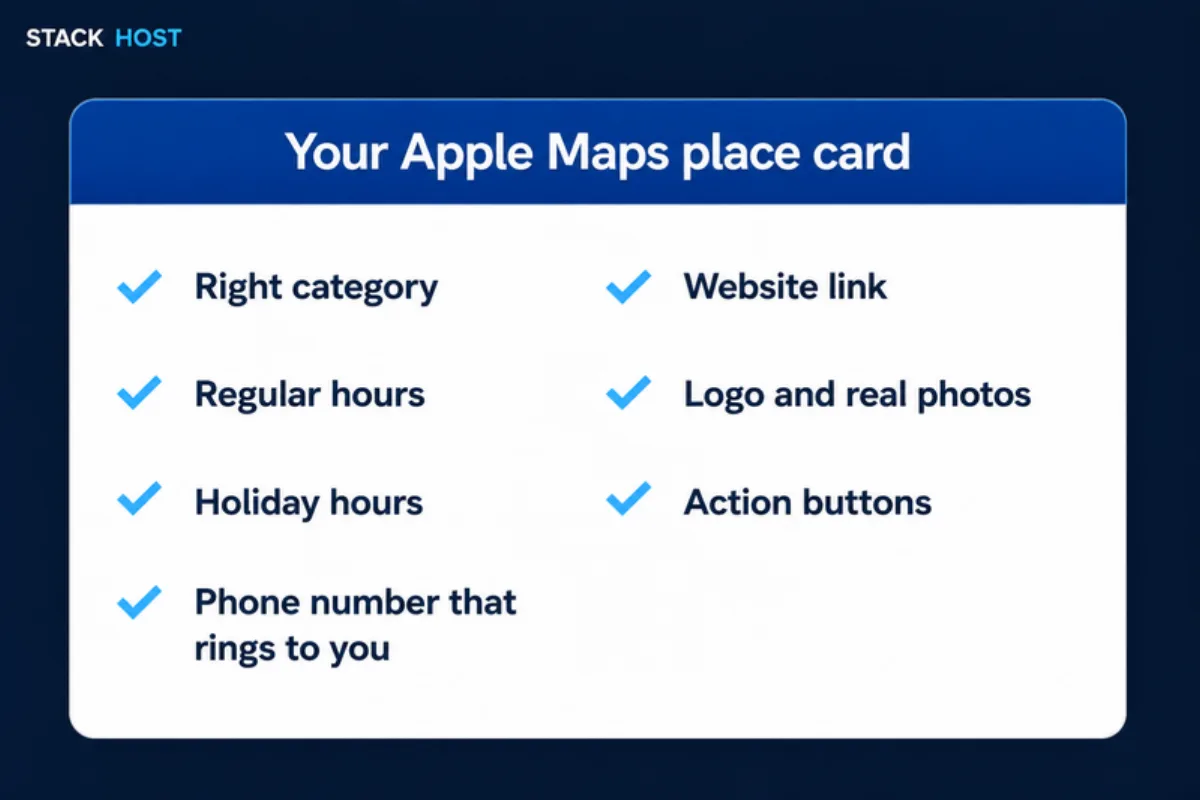
Once your place is yours, fill in every field you can. A full place card gives an iPhone user fewer reasons to keep scrolling.
A showcase is a short promotion on your place card. It has a photo, a few words and a button, and it runs for the dates you pick. Apple reviews each one before it goes live.
Ideas for a local service business:
Keep the words short and the photo clear. Send the button to a page about that exact offer, not your homepage.
Business Connect shows how people find your place card and what they do there, like calling or asking for directions. Look once a month. If calls drop, check your hours and phone number first.
A pin on the wrong street sends drivers to the wrong door. This happens a lot with new buildings, rural roads and business parks.
The fix: edit your location in Business Connect and check the address and map point. You can also open your place card in the Maps app, tap Report an Issue and suggest the right spot.
Two listings split your calls. One of them often has old details.
The fix: claim the listing with the right details. Then report the extra one as a duplicate, either from Business Connect or with Report an Issue in the Maps app.
An old employee, a past marketing company or a former owner may have claimed it first.
The fix: ask them to hand it over, if you can reach them. If you can't, follow the steps in Apple's Business Connect user guide to request access or contact Apple.
Most stuck verifications come down to a mismatch. The phone call can't reach you, or the document shows a different name or address.
The fix: make sure the listed number rings through during business hours. Use a document where the name and address match your listing exactly. Then try again.
Apple Maps, Google and Bing each keep their own listing. Change your phone number on one, and the others don't update.
The fix: use the same name, address and phone number everywhere. When you change one, change all three. See our guides to verifying your Google Business Profile and listing your business on Bing Places.
Many dumpster, portable toilet, roofing and cleaning businesses don't have a storefront. Apple has rules about which addresses can be listed.
The fix: read Apple's guidelines in the Business Connect user guide before you add a home address. If you have a yard, office or shop, list that address instead.
A listing isn't a one-time job. Put a reminder on your calendar.
We set up and look after listings for local businesses, including Apple Maps, Google Business Profile and Bing. We check them, keep them matched and send you a plain-English report. Our local SEO plans show what's included.
Yes. Apple offers Business Connect at no cost. You only need an Apple Account to sign in.
Apple reviews new places, changes and showcases before they go live. The time varies, so we can't promise a date. If it seems stuck, check Business Connect for messages from Apple.
No. Business Connect works in a web browser on any computer. An iPhone does help you check how your listing looks to customers.
No. They are separate. Update your details in Business Connect and in your Google Business Profile, and keep them the same.
Yes. Business Connect lets one business manage several locations. Give each its own correct address, phone number and hours.
Not sure your listings and website are working for you? Book a free website review and we'll check what customers see on Apple Maps, Google and your site. Or call us at (310) 776-6880.
There is no single best host, only the right one for your business. Here is how to judge any host on backups,
A plain guide to SEO for roofers: the map pack, service and storm pages, photos of real jobs, reviews, and the numbers
You search for what you do and your business isn't on the map. Here's how to check your profile, the 8 most